
Brand images identify the products discussed. This is independent editorial coverage.
In this article
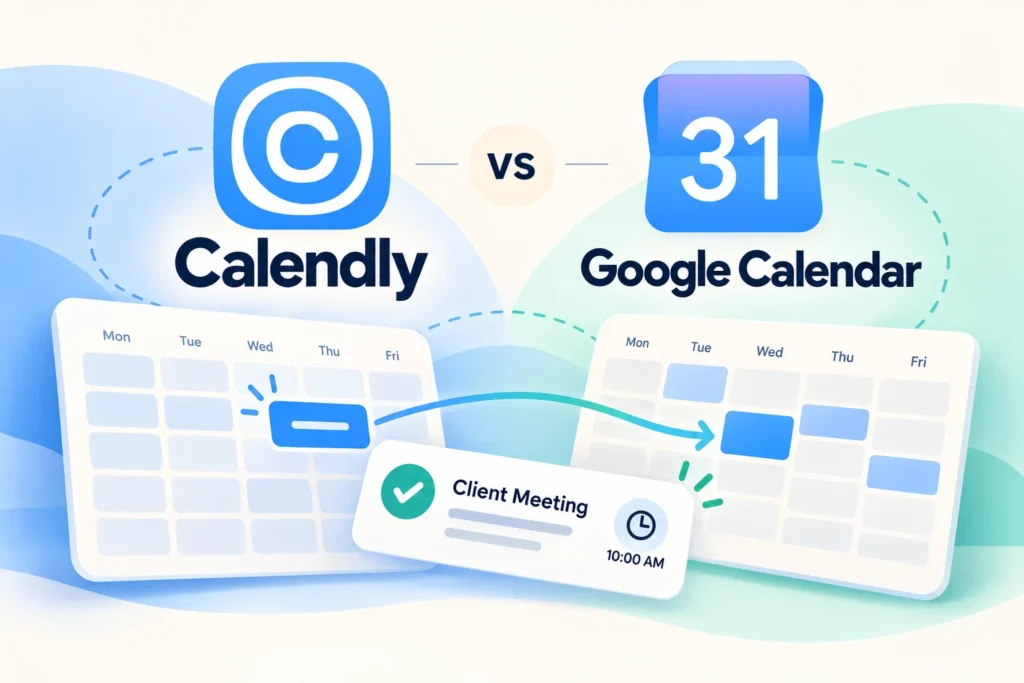
AI-assisted editorial illustration. Layouts are conceptual, not product screenshots.
If scheduling one discovery call takes four emails, a booking link can remove an annoying administrative task. Freelancers who already use Google Calendar may be able to start with its appointment schedules. Calendly is another option when the booking process needs a dedicated scheduling tool.
Our recommendation: check your existing Google account’s appointment-schedule features first if you need one simple booking page. Compare Calendly when you need a different set of scheduling options or expect several distinct meeting types. Choose against a written booking policy, rather than assuming that another subscription is necessary.
Research basis: official documentation checked on October 26, 2026. This is a researched comparison, not a hands-on scheduling benchmark. Product links are ordinary, non-affiliate links.
What are we comparing?
This comparison concerns Calendly’s booking tools and Google Calendar’s appointment schedules. Sharing your calendar or sending a normal event invitation is not the same as giving a visitor a page where they can choose an available appointment.
Google describes a booking page that you can share or embed; booked appointments appear on your calendar and unavailable times are blocked. See its appointment schedules overview for the current behavior and feature requirements.
| Question | Calendly | Google Calendar appointment schedules |
|---|---|---|
| What is available at the basic starting point? | The Free plan lists one event type and one calendar connection for one-to-one scheduling. | A personal Google Account or Workspace Business Starter account can create a single booking page. |
| What might require an upgrade? | Multiple event types, additional connected calendars, and automated reminders depend on the plan. | Premium appointment features, including reminders, depend on an eligible subscription. |
| What should I verify? | The required event types, calendar connections, and booking rules on the plan you will keep. | Account eligibility, calendar conflict checks, and the features included in your subscription. |
| Where should I begin? | A sample event matching your real discovery call. | A sample appointment schedule in the account you use for work. |
Sources: Calendly’s plan comparison and Google’s appointment-schedule eligibility guide. One Calendly “event type” and one Google “booking page” are product-specific limits, not interchangeable measures. Some Google account types cannot create appointment schedules, so verify your account before planning around the feature.
Write your booking policy before configuring a tool
Start with how you want to work. A booking page should expose suitable times for a particular purpose, rather than every gap in the week.
For example, a freelance consultant might propose this discovery-call policy:
- Purpose: assess whether the prospective client’s project fits the consultant’s services.
- Length: 25 minutes.
- Availability: Tuesday and Thursday, 14:00–16:00 in the consultant’s local time zone.
- Preparation: at least 24 hours’ notice and a short explanation of the project.
- Breathing room: a desired 15-minute buffer after each call.
- Outcome: a clear next step, such as a proposal, a clarification request, or a referral.
These are suggested working rules, not a claim that every listed control exists on every free plan. Check each requirement in the product and plan you are considering. If a required rule cannot be enforced, adjust the available slots or choose an option that supports it.
With 25-minute calls and 15-minute buffers, a two-hour block can accommodate three complete 40-minute call-and-buffer cycles in this example. Do not assume that the booking tool will offer exactly those slots until you test its start-time intervals and availability settings.
When Google Calendar may be enough
Suppose you offer one discovery-call format and already keep your work commitments in an eligible Google account. Test a single booking page before adding another service. The useful question is whether an unfamiliar visitor can book the right call without creating an avoidable scheduling conflict.
List every calendar that can make you unavailable. A personal commitment, another client’s meeting, or a shared team schedule may live somewhere else. Inspect which calendars the chosen setup checks; do not assume that every calendar you can see in your calendar app automatically blocks bookings.
If the page passes your essential requirements, keep the arrangement simple. Revisit it when your service changes, such as adding paid consultations or several appointment lengths, rather than upgrading for features you do not use.
When to evaluate Calendly
Consider a separate scheduling product when your requirements extend beyond the booking setup your Google account provides. Write down the exact need: a second event type, another calendar connection, a reminder sequence, or a future team handoff.
Then check the plan that includes it. Do not compare a temporary trial experience with the free plan you expect to retain. A working booking page is only a fair trial result if the necessary features remain available on your intended plan.
Keep the visitor’s experience in the decision too. Read the booking instructions on a phone, check the confirmation, and decide whether the page accurately describes your service. A short, clear purpose statement often matters more than decorative customization.
A six-step test before sharing your link
- Open it as a visitor. Use a separate browser session so the organizer’s signed-in access does not hide a problem.
- Check time zones. Have a trusted tester in another time zone inspect a proposed slot. Confirm both calendar invitations describe the same instant, especially near a daylight-saving change.
- Create a busy conflict. Put a test event on each calendar you intend the setup to check. Confirm that the overlapping slot disappears.
- Book once. Check the host event, visitor confirmation, meeting location or video link, and any questions collected.
- Reschedule and cancel. Confirm what the visitor receives and whether the old slot becomes available again as expected.
- Check your rules. Inspect notice periods, buffers, unavailable dates, and any reminders your selected plan promises.
Record the result of each step. If one fails, resolve it before placing the link in your email signature or website. Remove test events afterward so they do not distort your real availability.
Common questions
Do freelancers need to pay for a booking tool?
Not always. A basic single-purpose booking setup may meet your needs. Pay when a specific requirement is missing and the benefit justifies the additional cost.
Should I offer every free hour for calls?
No. Protect work blocks and offer deliberate appointment windows. A calendar gap is not automatically time you want to sell or spend on a meeting.
Will a booking page prevent no-shows?
It cannot guarantee attendance. Clear expectations, a useful confirmation, and appropriate reminders can support the process, but review actual attendance before deciding what needs to change.